Reorder the product page
Nothing in Signal’s buy column is fixed. The title, the price, the size run, the add-to-bag button, the shipping promises, the accordions — each is a separate piece you can move, remove or duplicate in the theme editor.

Everything on the right of that image is reorderable. A size-led page for apparel and a spec-led page for hardware are the same section with the pieces in a different order.
Do this
Section titled “Do this”-
Open the product template.
Theme editor → the template dropdown at the top → Products → Default product.
-
Select the Product section in the left sidebar.
It expands to show the buy column’s contents as a list — title, price, variant picker, buy buttons, and the rest.
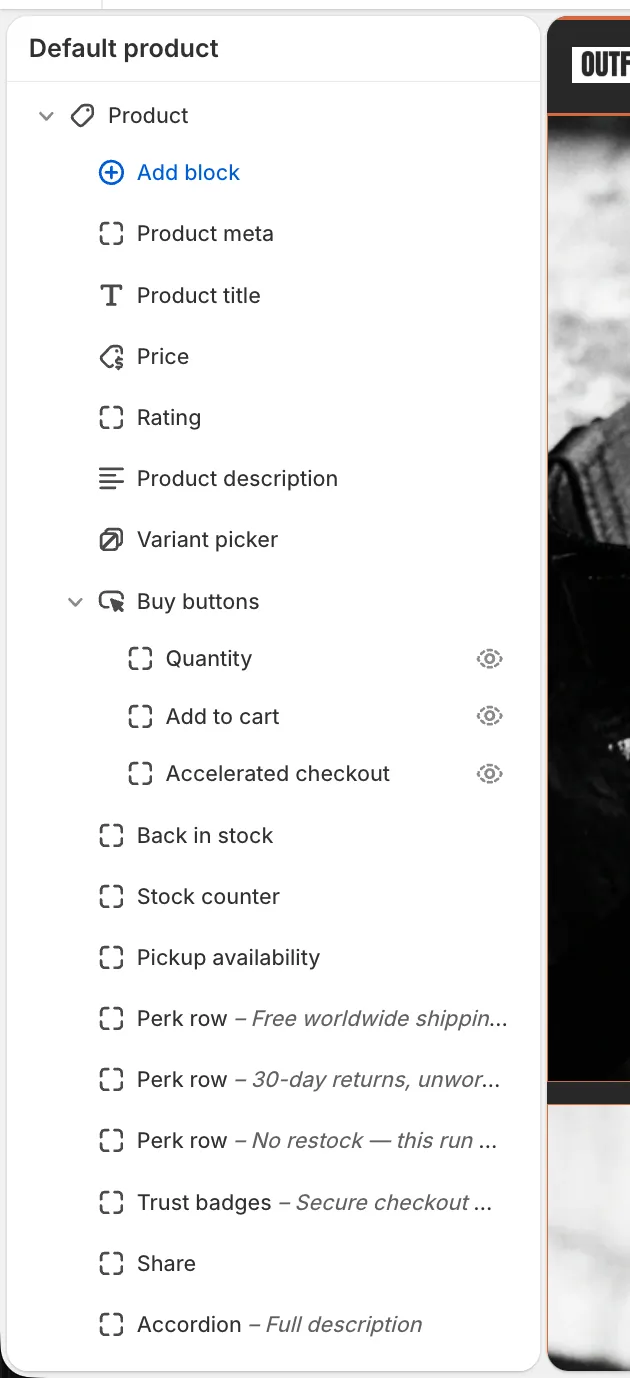
Every row here is draggable. Buy buttons holds three pieces inside it — those move with it. -
Drag to reorder.
Grab a row and move it. The preview updates as you drop. Want the price above the title? Drag it up one place.
-
Click any piece to configure it.
Each has its own settings — the price can show or hide the tax note, the variant picker switches between swatches and pills, and so on.
-
Remove what you don’t need.
The three-dot menu on each row has Remove. Nothing is required; a stripped page with title, price and a button is a valid page.
-
Add what’s missing.
Add block at the bottom of the list. Pickup availability, back-in-stock alerts, a spec table, trust badges and a share row are all available and not all are on by default.
-
Save.
Changing one product only
Section titled “Changing one product only”Reordering the default template changes every product. To give one product a different arrangement:
- In the editor’s template dropdown, choose Create template.
- Base it on the default product template and give it a name.
- Arrange it however that product needs.
- In Shopify admin, open the product → Theme template → pick your new one.
Useful when one product needs a size chart and a fit video while the rest of the catalogue doesn’t.
If something looks wrong
Section titled “If something looks wrong”A piece disappeared after I moved it. Some only render when they have something to show — pickup availability needs a location with pickup enabled, back-in-stock only appears on sold-out variants, the rating only with review data. It’s in the list, just not visible on this product.
The order changed on mobile too. It would. There’s one order for both; the layout reflows but the sequence holds. Check a narrow window before saving.
I can’t find the add-to-bag button in the list. It lives inside Buy buttons, along with quantity and the accelerated checkout options. Click that row to configure it.
- Product section reference — every setting, and how the gallery works
- Blocks overview — what each piece does, in detail
- Subscriptions — if you sell on a recurring basis